11:40 by FoxTwo
Is Microsoft Finally Losing The Browser Wars?
 Image via Wikipedia
Why amused? Because for all their dirty underhanded tactics, they are still losing ground. Back in 1995 when they first introduced Internet Explorer on Windows 95, the king of browsers back then was Netscape Navigator. Microsoft tried to de-throne it through forced-bundling of IE with the OS, through strong-arm tactics of resellers and hardware manufacturers. Many class action suits have been filed against them. I don't need to go into details since the history can be found on the Internet.
Microsoft also fought a war on the web itself - making ActiveX pages, hoping to attract users since ActiveX was more "interactive" and "engaging" at the time. In today's world, Flash and Java have already unseated ActiveX. There's hardly any non-Microsoft websites using ActiveX nowadays.
Microsoft tried again with "Silverlight", to go head to head with Java and Flash on the Interactive Content arena. Apparently they still lost, since I have hardly heard of anyone, tech guys included, who are won over by it.
So now, we finally have them making a series of web pages that DENY all other browsers except Internet Explorer 8 to view it, in the form of this contest.
Now, I don't want to go into the morality of this move, but personally, I think that Microsoft has made a bad call - you can't simply deny a group of people access to your content just because they do not use what you want them to use. If you want to practice this kind of restrictions, an INTRANET would be the appropriate place, but not out here on the INTERnet. Then again, that's just my opinion.
Somehow this smacks of the Browser Wars of the 90's, brewing again. Except this time I think perhaps Microsoft might actually lose. Back in the 90's, there weren't many choices for browsers. Users had no idea how and where to go to get one. Microsoft conveniently provided them with one. The only reason IE rose to prominence was the convenience of its availability.
Users then started to use the freely provided IE to download a different browser of their choice (be it FireFox, Opera, Safari etc) and stopped using IE. Microsoft recognised that their strong-arm tactics of forcing IE onto desktops was had in fact, backfired.
Back in the 90s we had a slew of web pages "best viewed in Internet Explorer". Those pages would use many IE-specific code and only IE could view those pages correctly. The intention was to "support" IE, and "encourage" people to use IE. Remember what happened next? There was an outcry, and the pages were made compatible with industry-standard code.
This "contest" is just a different way of doing the same thing as was done back in the 90s. Will it work this time around? It may. I personally don't think so. A person might switch to IE for now, to attempt to get the US$10,000. If he failed, he would probably switch back to whatever he was using.
Personally, I have never used IE on a regular basis. It's sitting there on my desktop but I don't click on it. My browser of choice has always been a competitor - Netscape Navigator in the 90s, and FireFox in 2000s. If so inclined, I might just click on IE, just for the sole purpose of trying my luck for the contest. Whether I win or not, I can guarantee you I'd be back on Firefox once this is all over.
If I were so inclined.
But I'm not :)
The best summary I can think of, is the video below. It shows what users perceive the Internet as, today. It's no longer "Firefox", or "Internet Explorer" or "Safari". The software used by the user today is, I guess, no longer important.
![Reblog this post [with Zemanta]](http://img.zemanta.com/reblog_e.png?x-id=0175455e-c648-401d-9cfb-9474cfd254e4)



13:23 by FoxTwo
Have You Gotten Your Firefox 3 Today?
Usually, it is with trepidation that I download a new browser on the actual release day itself. The main reason is the add-ons. I have come to rely on certain extensions and add-ons in Firefox in my daily surfing and other internet activities, and without those, the browser seems.... naked.
So yes, I actually bit the bullet and downloaded Firefox 3 today. It is with some relief that my extensions are 99% intact - only 1 was incompatible, and I can certainly live without it, since I hardly use it. However, the majority of my themes have been disabled. When Firefox 3 started, it was the "default" theme, and I must say, it doesn't look bad either. I could actually like the default theme enough not to go looking for other themes!
As for "faster".. well honestly, I don't really feel it. Feels about same to me, but of course, I do not have any benchmarking tools running to see actual figures. In normal usage it just feels... "normal".
The main feature, if you could call it that, is the new URL bar, dubbed "Awesome bar". You can type the letters as usual and it'll show you the previous URLs you have been to. In addition, now the URL bar offers you suggestions from web page TITLES too!
Now, you can even tag your bookmarks (like how you tag blog posts) and the Awesome Bar can pick up those tags too. So in other words, you now also are able to search via tags too! For people like me who has a massive collection of bookmarks over the years (mine stretches back to 1996), it's going to be quite daunting to go back and re-tag all the bookmarks...
There are other features too, but right now I'm just exploring them. Firefox 3 isn't that much different from Firefox 2 aside from the Awesome Bar, cosmetics wise and functionality wise. I will, of course, need to read the changelog to see what's new, but as it is right now, Firefox 3 just seems a more streamlined version of Firefox 2.

Labels: FireFox, Firefox 3, internet
08:06 by FoxTwo
Cool Way To Screenshot A Website Part 2
Back in January, I wrote this entry here, about a web service called Kwout. For those not familiar with it, it's basically a service to screenshot a page and provide ready-made code for you to insert into your blog to show a screenshot.
Now they've come up with a FireFox extension to do the same thing!
You don't have to to go their website to screenshot a website anymore with this extension. Here's how the extension works in Firefox:

You click on the small "k" in your status bar in Firefox. That will pop out the small options box you see in the screenshot.

Then you select the portion you wish to "cut", like as if you're on the actual Kwout website. Once done, you click on "CUT", as usual.

You'll see the final box appear once you've clicked on "CUT". The extra feature here is that you can SAVE the picture to your own computer, or if you click UPLOAD, it'll bring you to the Kwout website for it to be processed and the code generated for you to be put into your blog entry.
Again, in case someone forgets, Kwout is cool because not only does it screenshot a website, the screenshot image contain working links (if you allow)! In other words, if the screenshot has a button labelled "home", and you allowed image mapping, you can click on the "home" button in the screenshot image, and you will be brought to wherever the link points to. Think of it as a "miniwebsite".
Seriously, try it on my previous post. Click on the links in the picture, and you WILL be brought to the bloggers' actual blog entries!
Labels: Extension, FireFox, internet, website
12:17 by FoxTwo
Shareaholic - The One Button To Rule Them All
For example, I discovered the Intense Debate commenting system and implemented it here. Then a day or so later, I came across a competing commenting system, which also garnered rave reviews, and implemented it on my gaming blog. Well yeah I am still "in the process" of implementing the commenting and forum features to my third blog, and even thinking about using it on my website in general too.
Before we go further, I'd just like to jog your memory a little. When you read blogs, do you notice that a vast majority of them have some sort of "share this" button or link at the end of the entry? Yeah, those that you click or mouseover, and a list of services will be shown, like StumbleUpon, Digg, Twitter etc?
Well today I'll just touch on something similar, and it's available on the browser. It's a FireFox extension, called Shareaholic. and it's your own personal "share this" button on your own browser.
Remember when you first joined StumbleUpon? Yeah they told you that "it is highly recommended" that you install their toolbar. Then, you joined de.licio.us. They told you the same thing - "install our toolbar". You joined Technorati. Although they don't have a toolbar, you can use the many bookmarklets they have there to "bookmark" your faves.
The list goes on. For every of these "social sites" you have yet another toolbar to install, or more bookmarklet codes to put on your browser bar to "share" your favourites.
This is where Shareaholic comes in. This one single add-on will render all those toolbars and bookmarklets useless! Ok I exaggerate, but this can replace all of them in one fell swoop. Well check out the picture below for a better idea:

As usual, click to enlarge if you can't see it clearly.
As you can see, this one single add-on allows you to share the current page you're on with a multitude of services. I personally only picked those I really use. After all I doubt anybody would have an account on each of those services!
Well, is that it? Not quite.
Shareaholic also works very much like StumbleUpon. Well I think of it as "StumbleUpon without stumbling". What do I mean? Well when you click on the icon in your browser, you will see a selection called "Community links". This is where people using Shareaholic have bookmarked stuff and are sharing it across the various services that Shareaholic supports. The stuff they are sharing all appear here (although not really in real-time). The more impressive thing about this is that, you need not necessarily have an account in whatever services those links are bookmarked to - as long as you have the Shareaholic extension you can see every link passing through the system.
Yes indeed, by using this link, I "stumble" upon new stuff, almost exactly like "stumbling" :)

Labels: Extension, FireFox, internet
18:40 by FoxTwo
Ping.sg Shoutbox In A FireFox Sidebar
When Uzyn (head honcho of ping.sg) made the standalone shoutbox some time back this month (or was it last month?), many people loved it.
Then I got to thinking, couldn't I have the standalone shoutbox in the FireFox sidebar? Then it'll be permanently there, and I save one taskbar entry on the desktop. And, if in the office, the panicky clicks you issue when the boss comes around has one less "wrong button" for you to click to hide all your browser and chat and other windows :)
So, I did some experimentation, and here it is!
First, you need to open your browser to this URL -> http://ping.sg/shouts and save it as a bookmark.
Then, you go to your bookmarks, and edit the properties of this bookmark you've just created. Make sure the "Load This Bookmark in Sidebar" option is ticked, as shown below in the picture.
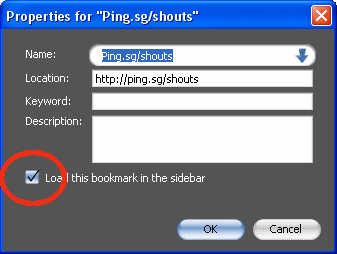
Viola! The next time you click on this bookmark in Firefox, it'll open itself in the sidebar.
Sorry users of Opera and other browsers.... I have no experience with them, so I don't know if it's possible to do the same thing with those browsers. Firefox works extremely well though.
Addendum :- Thanks to Xizor, please be reminded to login to ping.sg before you attempt to shout. ping.sg uses cookies, so if you set cookies to non-expiry (like me on my home browser), you'll remain permanently logged in on your browser, and you don't need to login everytime you want to load the shoutbox in the sidebar and shout.
Labels: FireFox, ping.sg, shoutbox
10:55 by FoxTwo
FoxMarks - For All Firefox Users
How many of you have copied bookmarks.html onto thumbdrives to carry your bookmarks all over with you to the office, to home etc? Well, FoxMarks makes it simple. In pilot-speak, FoxMarks is a "fire and forget" add-on. You configure it once (albiet on every PC you want to have the bookmarks on Firefox synced) and then you will even forget it exists.
FoxMarks will compare bookmarks between your currently active Firefox, eg the one in the office, to the copy of bookmarks it has on the FoxMarks server. If it finds that you have added new bookmarks, it will automatically update the copy in the server.
When you get home and run FireFox again, FoxMarks does the same comparison, and if it finds that the bookmarks on its server is "newer" than your bookmarks, it'll sync them. So, you will only ever need to add a bookmark ONCE and FoxMarks will handle all the multiple copies of FireFox you have.
Great add-on, and FireFox should have made this feature built-in!